> ## Documentation Index
> Fetch the complete documentation index at: https://docs.gladecore.com/llms.txt
> Use this file to discover all available pages before exploring further.
# Quickstart
> Start testing the pre-built NPCs and AI functionality immediately!
After installing GladeCore into your existing or new project, navigate to your `Assets → GladeCore → Scenes` folder and open any of the Demo scenes to start testing immediately.
There will be an LLM GameObject in each scene. To run each Demo scene, make sure the model is loaded on the LLM instance from the `Assets → StreamingAssets → models` folder. Click **load model** in the LLM script.
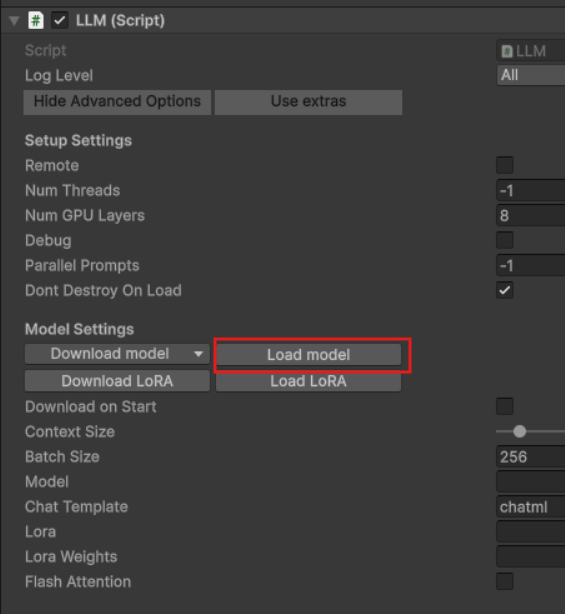 After clicking load model navigate to the `Assets → StreamingAssets` folder in your Unity project and download the custom finetuned model by Glade.
Now you should be able to test whatever scene you have loaded the model in.
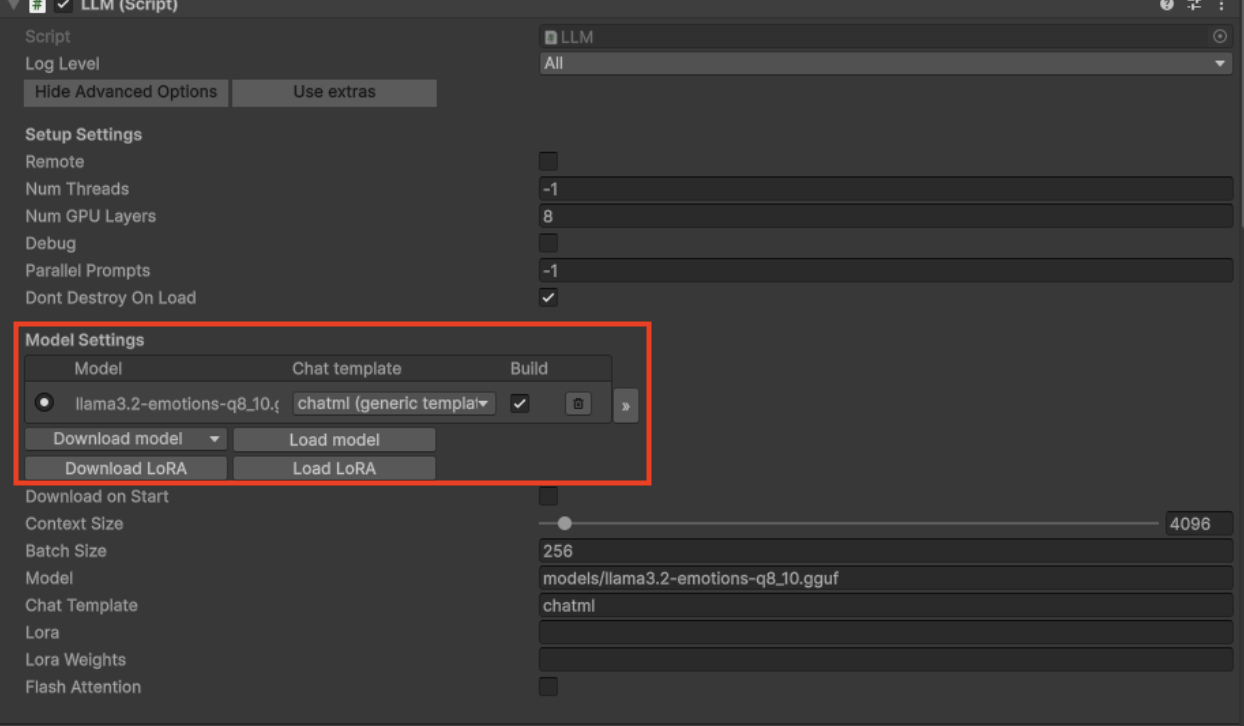
> *Note that you must apply the model to each scene or it will not load. Make sure the line that says model is not empty.*
Make sure your LLM in each scene looks like this so that it has the model applied for inference. Feel free to play around with Num GPU layers depending on hardware.
After clicking load model navigate to the `Assets → StreamingAssets` folder in your Unity project and download the custom finetuned model by Glade.
Now you should be able to test whatever scene you have loaded the model in.
> *Note that you must apply the model to each scene or it will not load. Make sure the line that says model is not empty.*
Make sure your LLM in each scene looks like this so that it has the model applied for inference. Feel free to play around with Num GPU layers depending on hardware.