> ## Documentation Index
> Fetch the complete documentation index at: https://docs.gladecore.com/llms.txt
> Use this file to discover all available pages before exploring further.
# Step 4: Speech to Text (STT)
> Follow the instructions below to set up and use Speech to Text (STT) capabilities.
## General Setup
1. Go to ChatUICanvas in the DemoChat Scene. Find STTManager Script.
*Note: if you can't find it, add \[STTManager] script, assign it to \[NPCChatUI].*
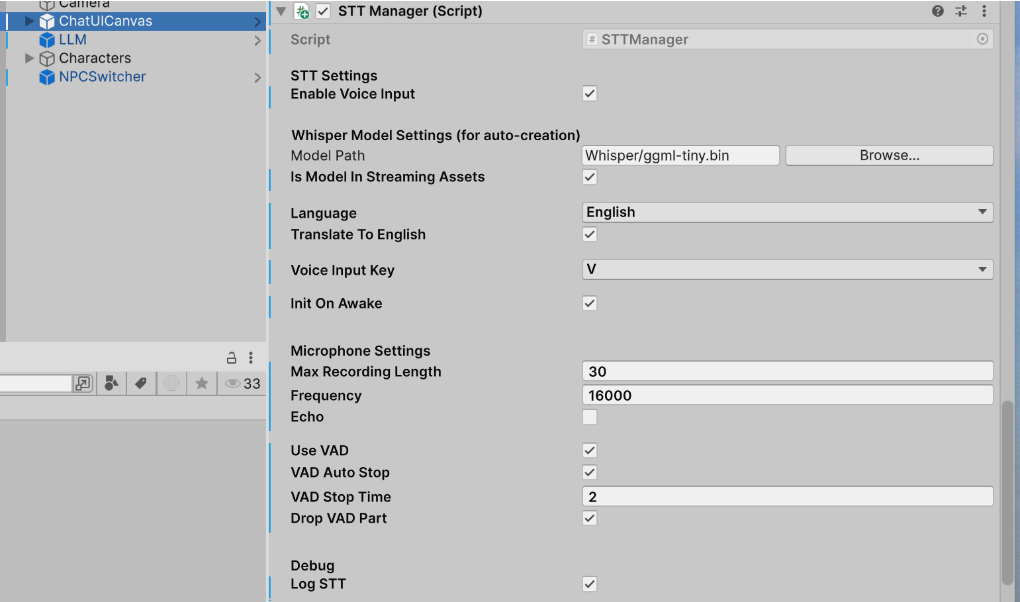
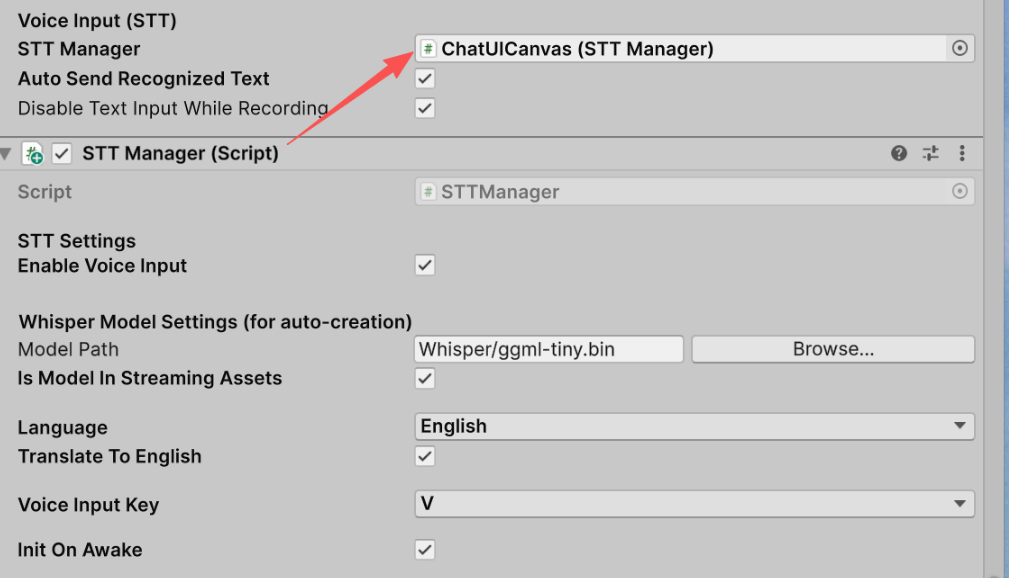
 2. **Auto Send Recognized Text:** Checked by default. The recognized STT text is sent to the chat automatically.
3. **Disable Text Input While Recording**: Checked by default. The user cannot type in the chat while recording.
## STT Manager Settings
1. Check Enable Voice Input to enable STT
2. **Auto Send Recognized Text:** Checked by default. The recognized STT text is sent to the chat automatically.
3. **Disable Text Input While Recording**: Checked by default. The user cannot type in the chat while recording.
## STT Manager Settings
1. Check Enable Voice Input to enable STT
 2. Model Path
* Download whisper models from [https://huggingface.co/ggerganov/whisper.cpp/tree/main](https://huggingface.co/ggerganov/whisper.cpp/tree/main)
* Copy the model file to `/Assets/StreamingAssets/Whisper/`
* Select the model for STT
2. Model Path
* Download whisper models from [https://huggingface.co/ggerganov/whisper.cpp/tree/main](https://huggingface.co/ggerganov/whisper.cpp/tree/main)
* Copy the model file to `/Assets/StreamingAssets/Whisper/`
* Select the model for STT

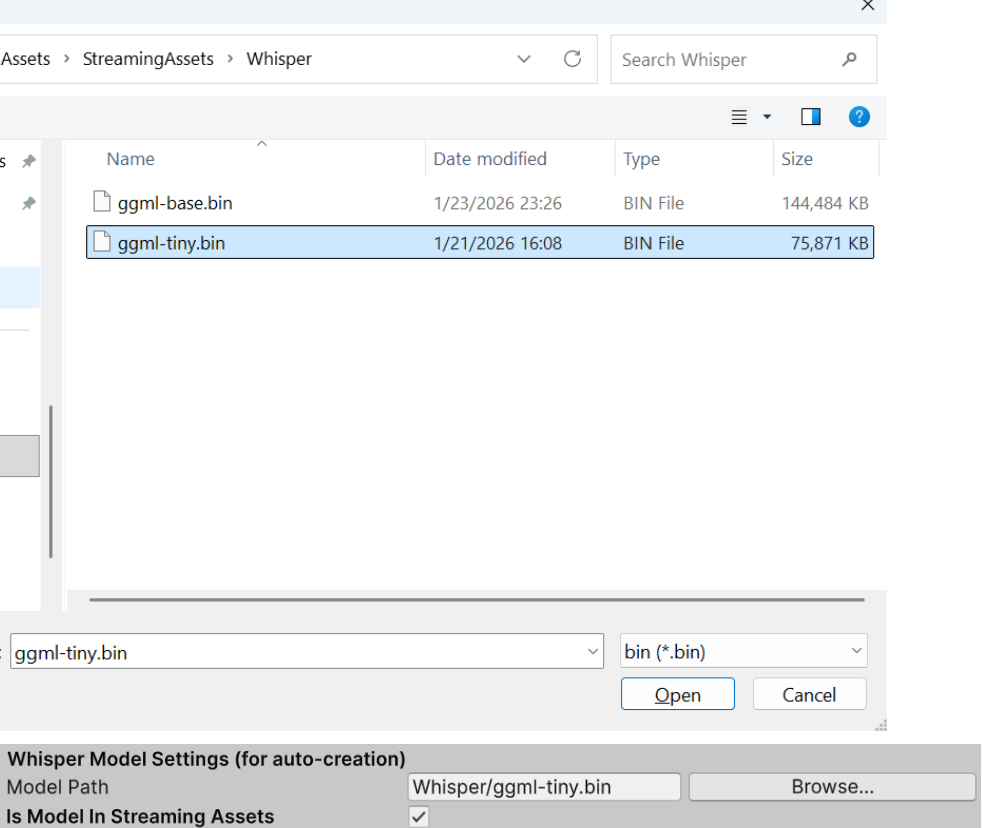 **Is Models in Streaming Assets**: checked by default so the packaged game includes the Whisper models.
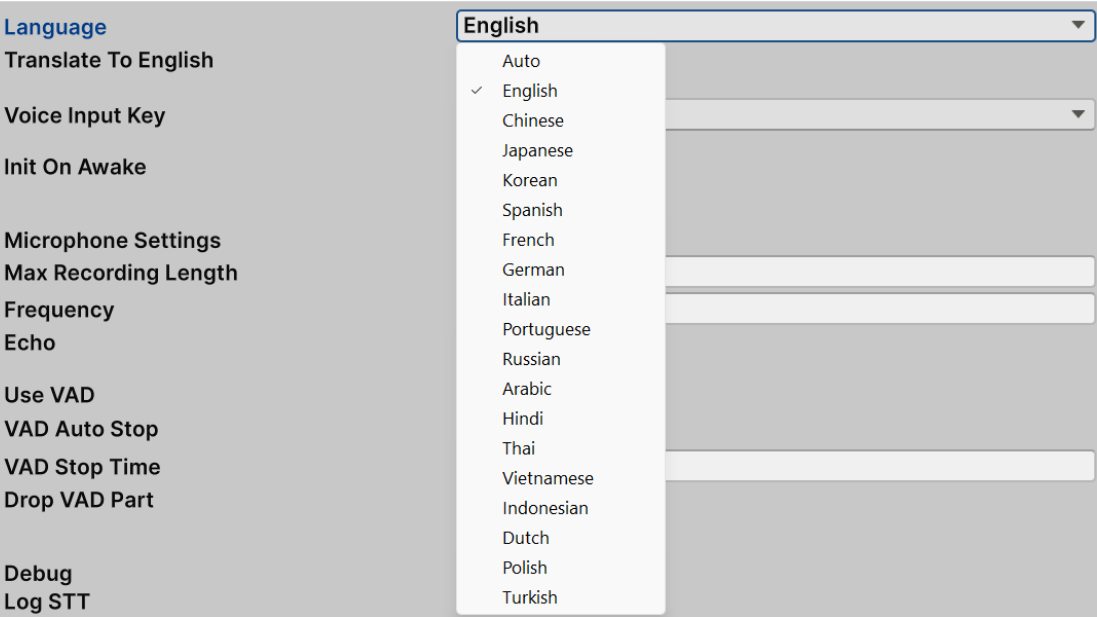
3. Select the Language
Translate To English is checked by default.
*Note: If set to Auto, Whisper may mis-detect the spoken language and produce garbled output.*
**Is Models in Streaming Assets**: checked by default so the packaged game includes the Whisper models.
3. Select the Language
Translate To English is checked by default.
*Note: If set to Auto, Whisper may mis-detect the spoken language and produce garbled output.*
 4. Select Voice Input Key
Press and hold the voice input key to record. Release to end recording.
4. Select Voice Input Key
Press and hold the voice input key to record. Release to end recording.
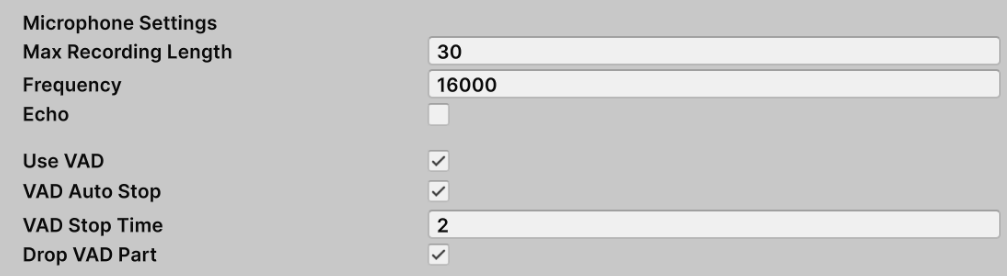
 5. Microphone Settings
 6. Debug
