> ## Documentation Index
> Fetch the complete documentation index at: https://docs.gladecore.com/llms.txt
> Use this file to discover all available pages before exploring further.
# Step 5: Text to Speech (TTS)
> Follow the instructions below to set up and use Text to Speech (TTS) capabilities.
## General Setup
1. Create `TTSConfig` Prefab and Assign it to you Character’s `TTSManager` component (there is one provided inside `GladeCore Scripts -> TTS -> Config`)
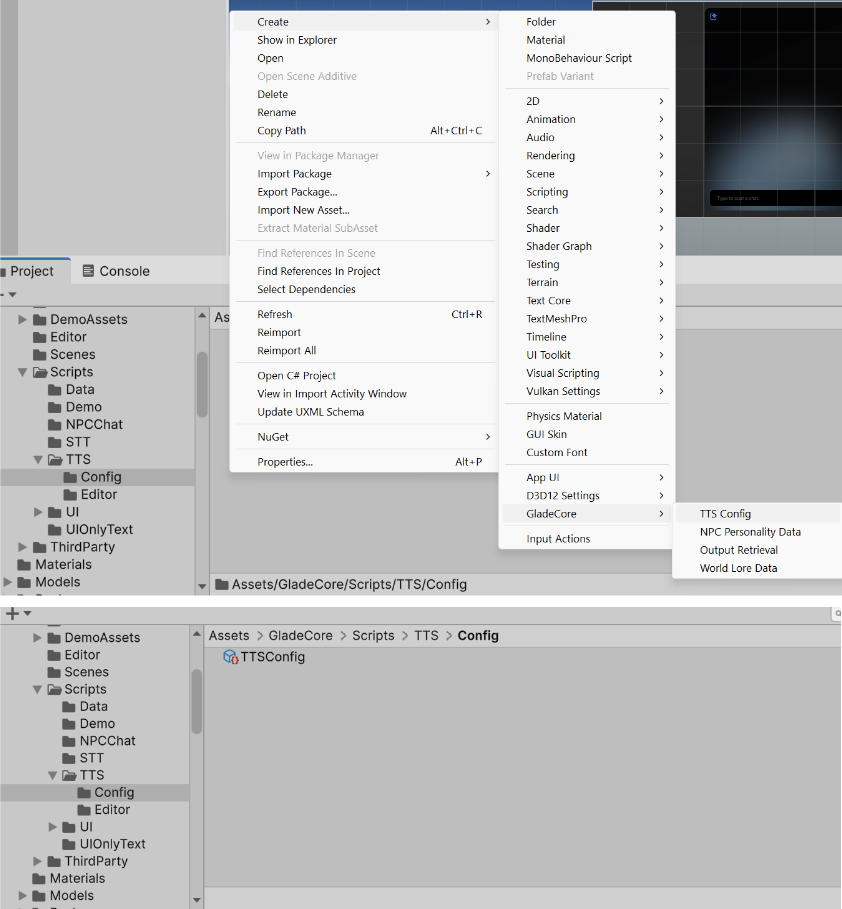 2. Open `NPCPersonalityData` Prefab used for the your character
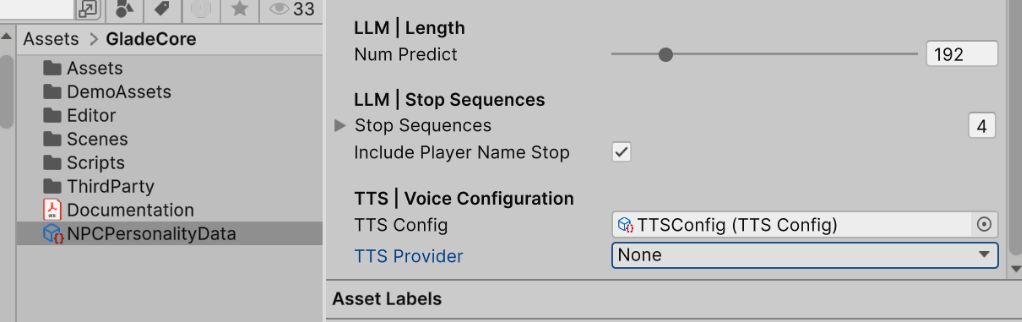 3. Select TTS Provider (None means disable TTS). We recommend ElevenLabs as local options for TTS are still very slow and lower quality.
* ElevenLabs
3. Select TTS Provider (None means disable TTS). We recommend ElevenLabs as local options for TTS are still very slow and lower quality.
* ElevenLabs
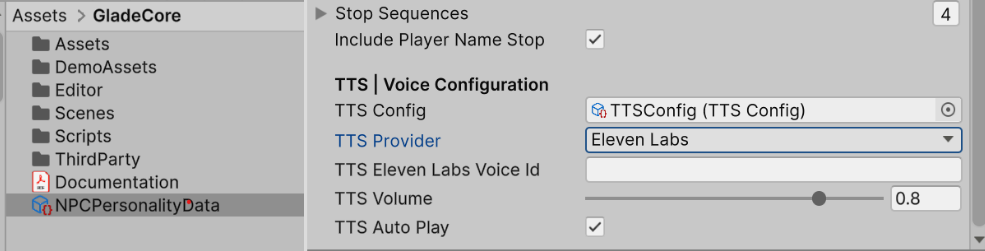 * Spark TTS (Slow Generation Speed, use it for research)
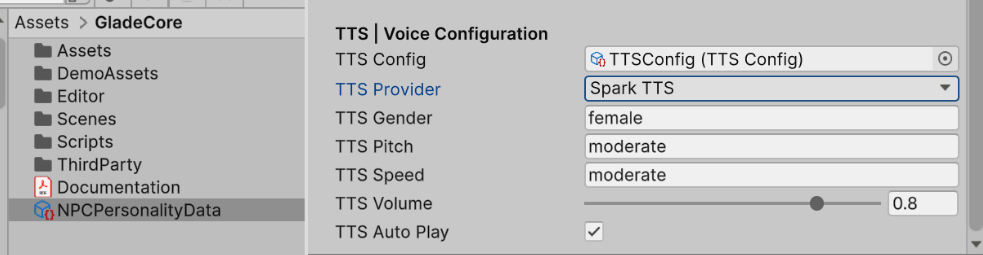 4. Check Enable TTS in NPCChatComponent of your character
 ## TTS Config
Follow the configuration steps below, first section is ElevenLabs config and section section is for Spark TTS.
1. **Cloud TTS Provider Configuration (ElevenLabs)**
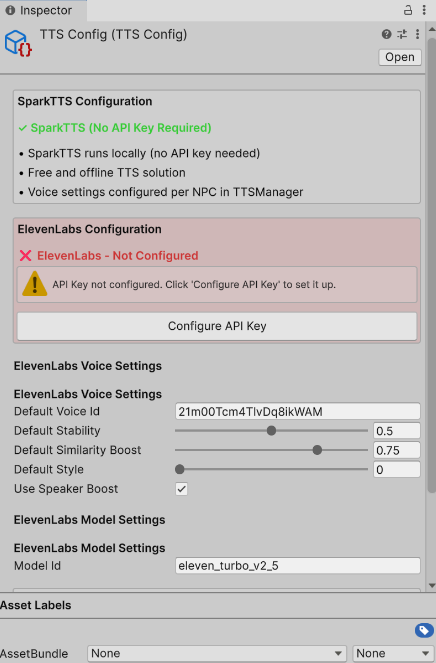
* Open TTS Config
## TTS Config
Follow the configuration steps below, first section is ElevenLabs config and section section is for Spark TTS.
1. **Cloud TTS Provider Configuration (ElevenLabs)**
* Open TTS Config
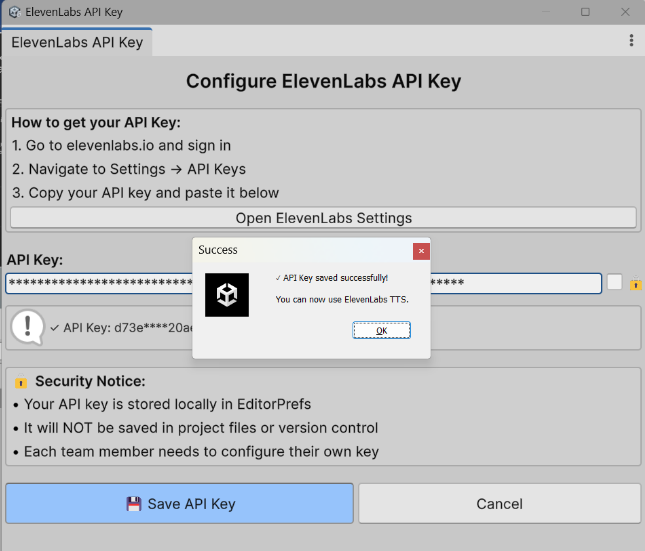
 * Add your ElevenLabs API Key and Press Save API Key
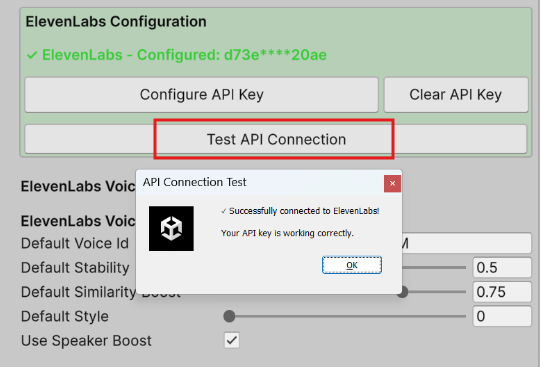
 * Click `Test API Connection` to test
 2. [**Spark TTS Setup**](https://github.com/arghyasur1991/Spark-TTS-Unity)
Using Unity Package Manager (Recommended):
1. Open your Unity project
2. Open the Package Manager (Window > Package Manager)
3. Click the "+" button in the top-left corner
4. Select "Add package from git URL..."
5. Enter the repository URL: [https://github.com/arghyasur1991/Spark-TTS-Unity.git](https://github.com/arghyasur1991/Spark-TTS-Unity.git)
6. Click "Add"
Download pre-exported ONNX models here \
[https://drive.google.com/file/d/1YXj81ApcEasY17a8Zj9RqTpvn4s1UKk7/view](https://drive.google.com/file/d/1YXj81ApcEasY17a8Zj9RqTpvn4s1UKk7/view)
1. Download/Unzip files from link
2. Move the SparkTTS folder directly into the Assets/models folder. If there is none, make one.
3. Use the Model Deployment Tool found at the top of Unity Editor
2. [**Spark TTS Setup**](https://github.com/arghyasur1991/Spark-TTS-Unity)
Using Unity Package Manager (Recommended):
1. Open your Unity project
2. Open the Package Manager (Window > Package Manager)
3. Click the "+" button in the top-left corner
4. Select "Add package from git URL..."
5. Enter the repository URL: [https://github.com/arghyasur1991/Spark-TTS-Unity.git](https://github.com/arghyasur1991/Spark-TTS-Unity.git)
6. Click "Add"
Download pre-exported ONNX models here \
[https://drive.google.com/file/d/1YXj81ApcEasY17a8Zj9RqTpvn4s1UKk7/view](https://drive.google.com/file/d/1YXj81ApcEasY17a8Zj9RqTpvn4s1UKk7/view)
1. Download/Unzip files from link
2. Move the SparkTTS folder directly into the Assets/models folder. If there is none, make one.
3. Use the Model Deployment Tool found at the top of Unity Editor
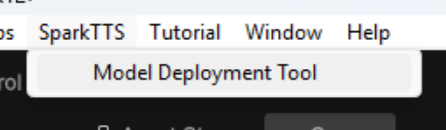
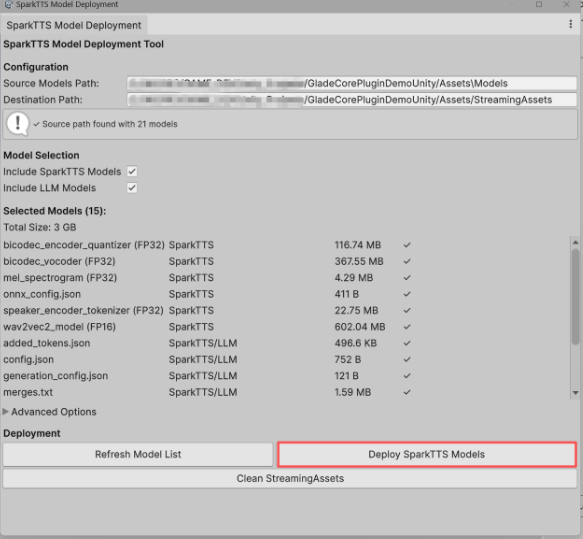 Click Deploy SparkTTS Models once you see all the selected models from the folder in Assets/models.