> ## Documentation Index
> Fetch the complete documentation index at: https://docs.gladecore.com/llms.txt
> Use this file to discover all available pages before exploring further.
# Step 1: Configure your Player Character
> Getting your character set up to use our plugin only takes a few simple steps. Feel free to also take a look at our Demo Character for a fully configured example.
1. **Add the Glade Core Component**:
* Open your player character Blueprint.
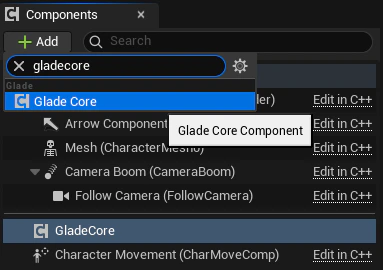
* Click + Add in the Components panel and search for `GladeCoreComponent`. Add it to the character. This will automatically add all the necessary sub-components that are configurable within this component.
 2. **Configure the LLM Component**:
* In the Components panel, select the GladeCore `LLMComponent` that was just added.
* Under the Chat category, assign your `UChatInputWidget` Blueprint to the `ChatInputWidgetClass` property.
* Under the LLM category, you will find the `LLMServiceManager` instance. This is where you configure the core AI service.
2. **Configure the LLM Component**:
* In the Components panel, select the GladeCore `LLMComponent` that was just added.
* Under the Chat category, assign your `UChatInputWidget` Blueprint to the `ChatInputWidgetClass` property.
* Under the LLM category, you will find the `LLMServiceManager` instance. This is where you configure the core AI service.
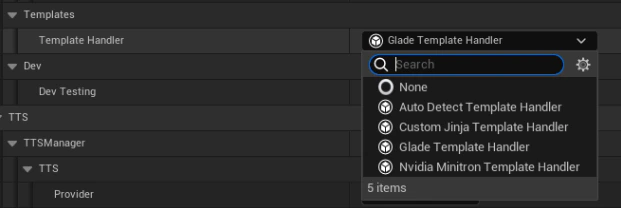
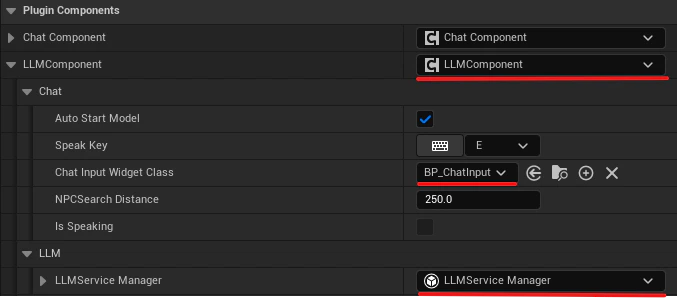 * Select the appropriate template handler based on the model you are using. By default, use `Auto Detect Template Handler`, which inspects the loaded GGUF filename and automatically applies the correct chat template. See [here](/files/supported-models) for a list of models we support and the corresponding templates to use.
 3. **GPU Layer Offloading**
* In the `LLMServiceManager`, the `GPU Layers` integer controls how many model layers are offloaded to the GPU. This lets you tune VRAM usage vs. performance.
* **Values**:
* **999 (default):** All layers on GPU - maximum performance, requires enough VRAM for the full model
* **0:** CPU only - no GPU used, slowest but works on any machine
* **1-N:** Partial offload - first N layers on GPU, remainder on CPU (useful for limited VRAM)
## **Example: LLM Component**
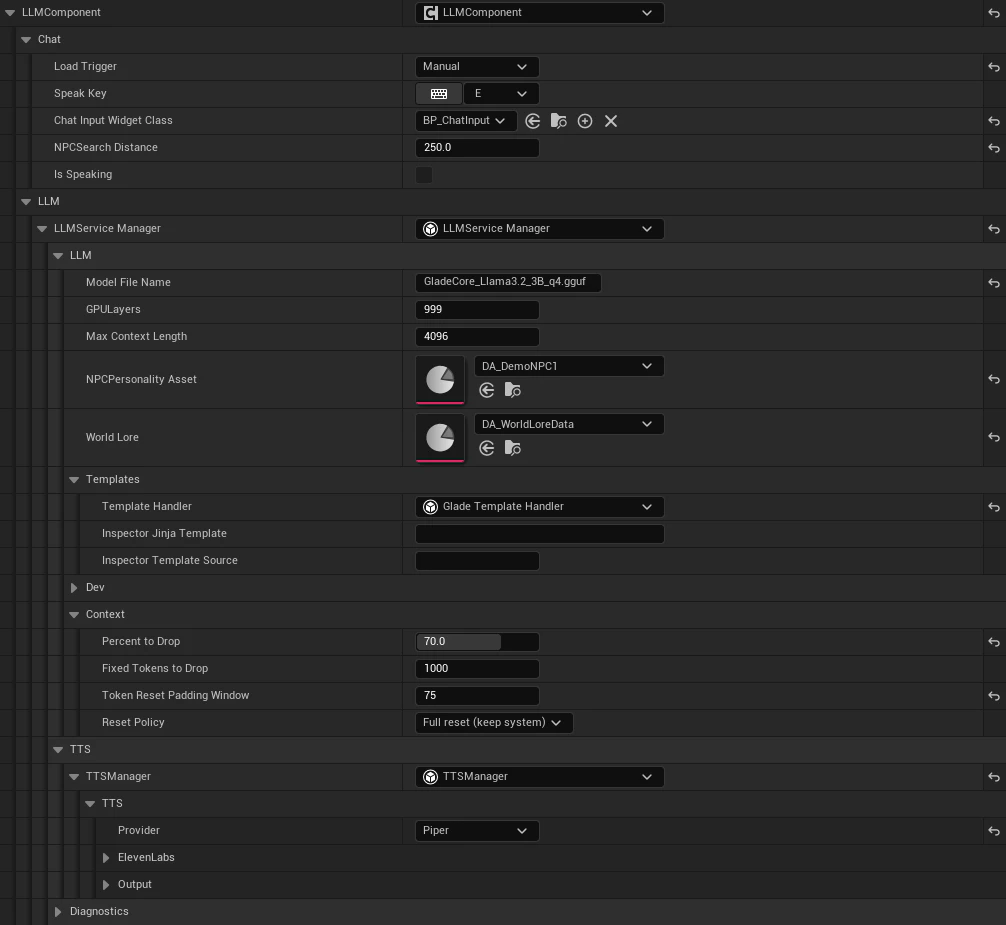
Below is an example image of a configured `LLMComponent` using Piper for TTS.
3. **GPU Layer Offloading**
* In the `LLMServiceManager`, the `GPU Layers` integer controls how many model layers are offloaded to the GPU. This lets you tune VRAM usage vs. performance.
* **Values**:
* **999 (default):** All layers on GPU - maximum performance, requires enough VRAM for the full model
* **0:** CPU only - no GPU used, slowest but works on any machine
* **1-N:** Partial offload - first N layers on GPU, remainder on CPU (useful for limited VRAM)
## **Example: LLM Component**
Below is an example image of a configured `LLMComponent` using Piper for TTS.
 ## **Example: Speech Chat Component**
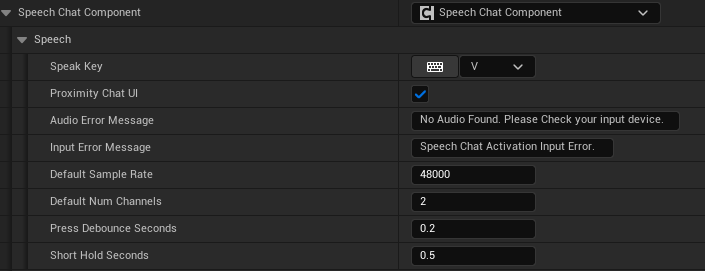
Below is an example image of a configured Speech Chat Component.
## **Example: Speech Chat Component**
Below is an example image of a configured Speech Chat Component.
 ## **Example: Enable or Disable STT and TTS**
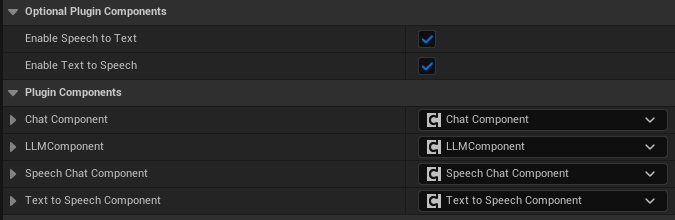
Below is an example image of where to enable or disable Speech to Text and Text to Speech.
## **Example: Enable or Disable STT and TTS**
Below is an example image of where to enable or disable Speech to Text and Text to Speech.