> ## Documentation Index
> Fetch the complete documentation index at: https://docs.gladecore.com/llms.txt
> Use this file to discover all available pages before exploring further.
# Step 3: Configure the NPC
> Set up your NPC character's Blueprint to be an interactive conversation target.
1. **Add the NPCChatComponent**:
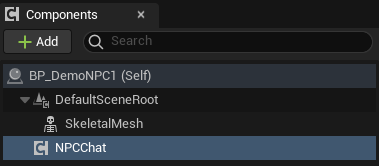
* Open your NPC character Blueprint.
* Click + Add and add a `NPCChatComponent`.
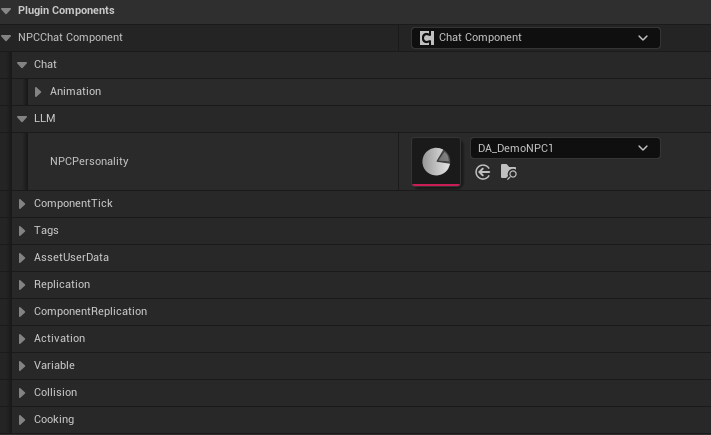
* Select the Chat Component. In the Details panel, assign the `NPCPersonalityData` asset you created in Part 1 to the `NPCPersonality` property. It will swap personalities when starting conversations.
* Select the `NPCChat Component`. In the Details panel, find the NPCChatComponent property and use the dropdown to select the Chat Component if it says none or is empty.
Below is an example image of the `NPC ChatComponent` finished. Feel free to also take a look at our `BP_DemoNPC1` and `BP_DemoNPC2` as examples.