> ## Documentation Index
> Fetch the complete documentation index at: https://docs.gladecore.com/llms.txt
> Use this file to discover all available pages before exploring further.
# Installing GladeCore Basic
> Here is how to set up our basic plugin for your Unreal Engine game.
> Note that this is the process to install the **Basic** version of GladeCore. If you would like to immediately subscribe to and install **GladeCore Pro**, skip to this [section](/unreal/pro-setup).
### **Download our Plugin from Epic Games Store (Fab)**
Visit this [link ](https://fab.com/s/b141277edaae)to purchase and download our plugin.
Once downloaded, you will see the plugin in your Epic Games Marketplace / FAB asset library.
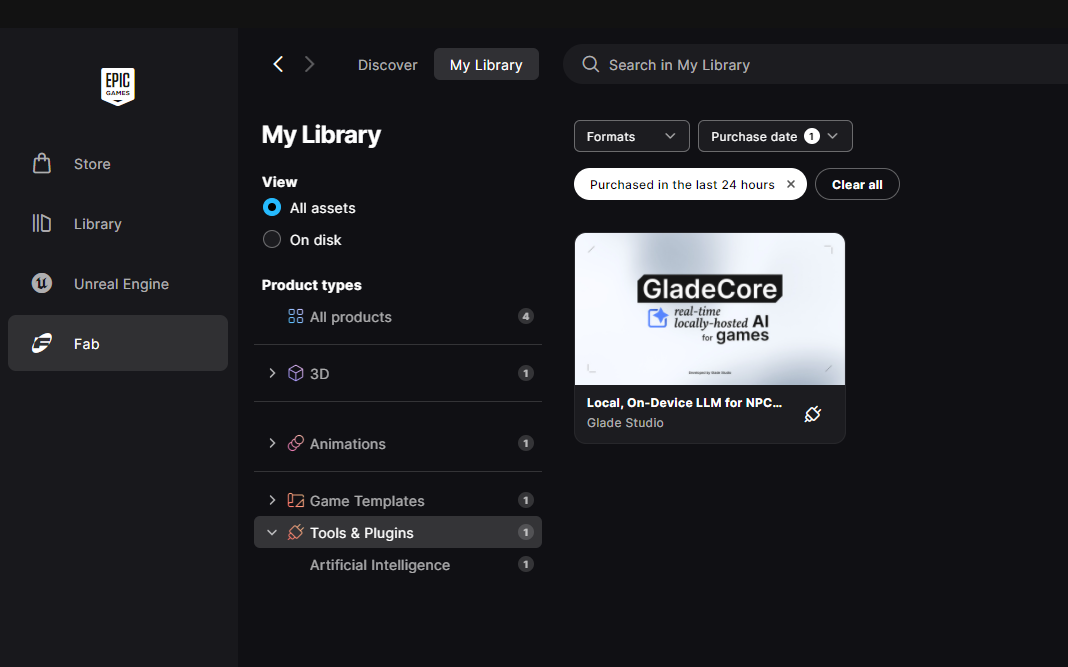 Download and install the plugin for your engine verison. Once completed, the plugin will be installed to your Unreal Engine installation **Plugins →** **Marketplace** folder by default. Note that you have to find where your Unreal Engine is installed on your computer to find this folder, not your project directory. It will either be named GladeCore or a long name starting with "**LocalOn**".
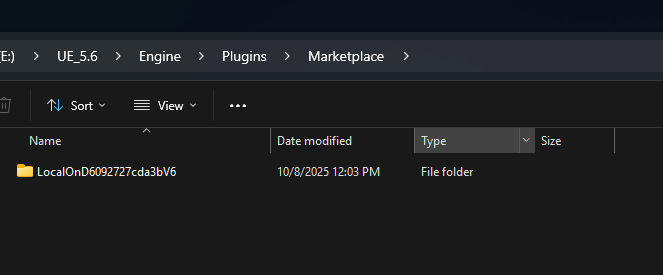 Make sure to change the this folder to be named GladeCore. Drag or copy this folder to your desired Project directory's Plugins folder, open your project, and everything should then compile and build correctly. Your project directory should look like this for example: **MyProjectName → Plugins → GladeCore**.
### **Common Error For Blueprint Only Projects**
Make sure to change the this folder to be named GladeCore. Drag or copy this folder to your desired Project directory's Plugins folder, open your project, and everything should then compile and build correctly. Your project directory should look like this for example: **MyProjectName → Plugins → GladeCore**.
### **Common Error For Blueprint Only Projects**
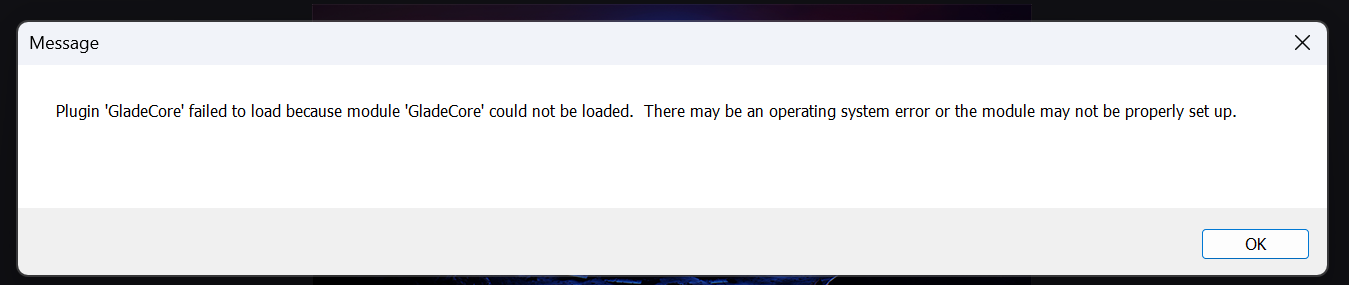 If you encounter this error and your project is Blueprint-only, you’ll need to convert it to a **C++ project** so that a Visual Studio solution (`.sln`) file is generated.
1. Open your project in the Unreal Editor.
2. At the top menu of the editor, go to **Build** **Tools → New C++ Class**.
3. Create any C++ class type and name it anything
> This class won’t be used - it simply converts your project to support both C++ and Blueprints.
4. After Unreal finishes creating the class, **close the editor**.
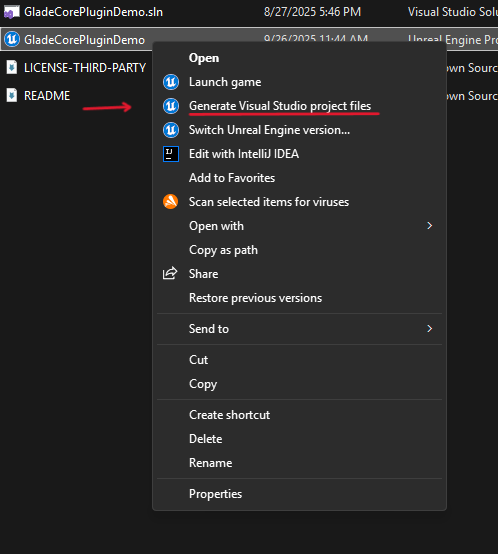
5. Right-click your `.uproject` file and select **Generate Visual Studio project files**.
If you encounter this error and your project is Blueprint-only, you’ll need to convert it to a **C++ project** so that a Visual Studio solution (`.sln`) file is generated.
1. Open your project in the Unreal Editor.
2. At the top menu of the editor, go to **Build** **Tools → New C++ Class**.
3. Create any C++ class type and name it anything
> This class won’t be used - it simply converts your project to support both C++ and Blueprints.
4. After Unreal finishes creating the class, **close the editor**.
5. Right-click your `.uproject` file and select **Generate Visual Studio project files**.
 6. Open the generated `.sln` file in **Visual Studio**, build the project, and then run it.
> Also make sure your default source code is set to an IDE that is supported by Unreal Engine (such as ***Visual Studio*** or ***JetBrains Rider***), not Visual Studio Code.
Once built, you can now run the `.uproject `file and use the demo in packaged games or in editor.
### **Disable NNE Plugins in Later Unreal Engine Versions**
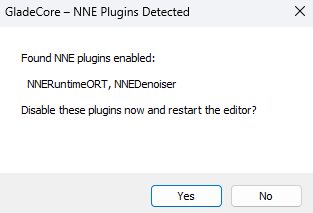
If you open your project and see this popup, select "Yes". This will restart your editor and ensure those NNE plugins are disabled so they don't interfere with GladeCore.
6. Open the generated `.sln` file in **Visual Studio**, build the project, and then run it.
> Also make sure your default source code is set to an IDE that is supported by Unreal Engine (such as ***Visual Studio*** or ***JetBrains Rider***), not Visual Studio Code.
Once built, you can now run the `.uproject `file and use the demo in packaged games or in editor.
### **Disable NNE Plugins in Later Unreal Engine Versions**
If you open your project and see this popup, select "Yes". This will restart your editor and ensure those NNE plugins are disabled so they don't interfere with GladeCore.