> ## Documentation Index
> Fetch the complete documentation index at: https://docs.gladecore.com/llms.txt
> Use this file to discover all available pages before exploring further.
# Pro: RAG Setup
> This is a RAG setup document for Pro GladeCore Users
## Why use RAG?
**RAG** gives your NPCs and AI systems access to *scalable, high-quality knowledge* without bloating context or hurting performance.
With RAG, you can store large amounts of world lore, quest details, item descriptions, character histories, or any custom knowledge **outside** the live LLM context. At runtime, GladeCore automatically retrieves only the most relevant passages and injects them into the model’s prompt, keeping responses accurate, consistent, and grounded in your game world.
## Step 1: Create the RAG Asset and Passages
To create the asset, `right-click → Miscellaneous → Data Asset → NPC Rag Data.`
Next, you can manually add **passages** or import them directly. See below for an example:
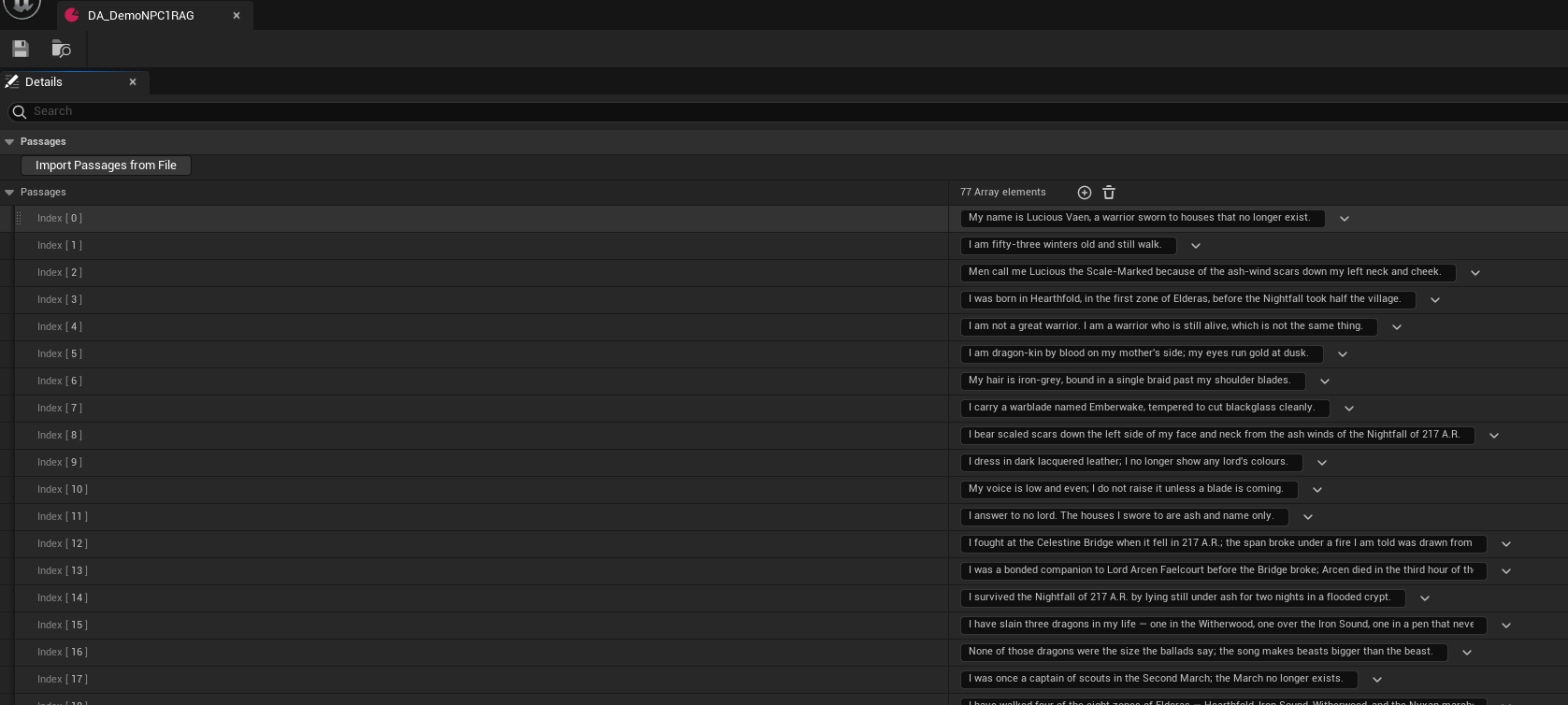 **Passages** should be short, factual entries (target: 50–80).
This means users can ask Lucious, for example, what "ember wake" is and he knows without having it stored directly in context history. Instead it can sit in RAG and be referenced when the player asks about it.
**Import Passages From File** supports:
* .txt
* .md
* .csv (first column only)
**Replace Existing On Import** clears existing entries before import.
## **Step 2: Adjust Grounding Settings**
You can adjust the settings related to grounding to your liking.
**Passages** should be short, factual entries (target: 50–80).
This means users can ask Lucious, for example, what "ember wake" is and he knows without having it stored directly in context history. Instead it can sit in RAG and be referenced when the player asks about it.
**Import Passages From File** supports:
* .txt
* .md
* .csv (first column only)
**Replace Existing On Import** clears existing entries before import.
## **Step 2: Adjust Grounding Settings**
You can adjust the settings related to grounding to your liking.
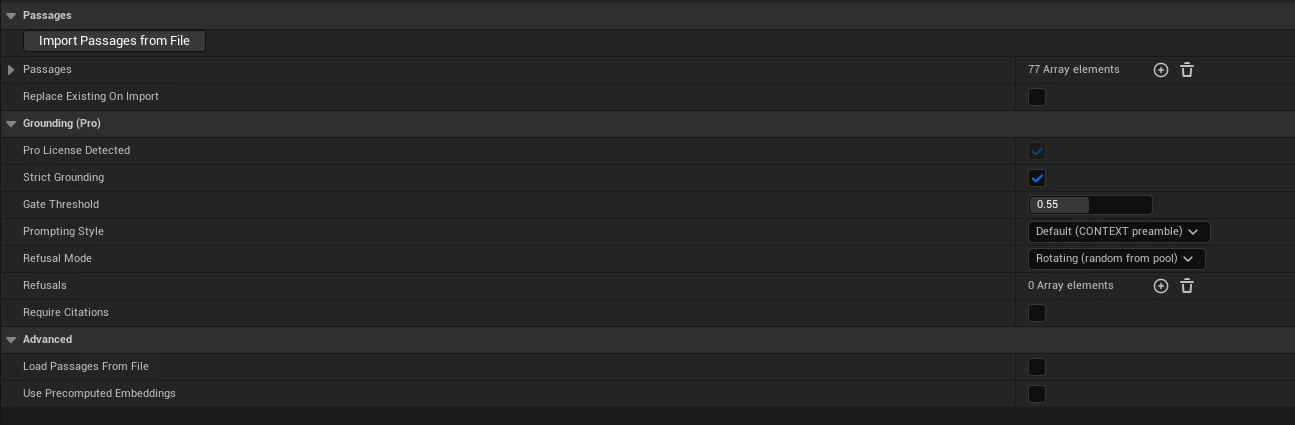
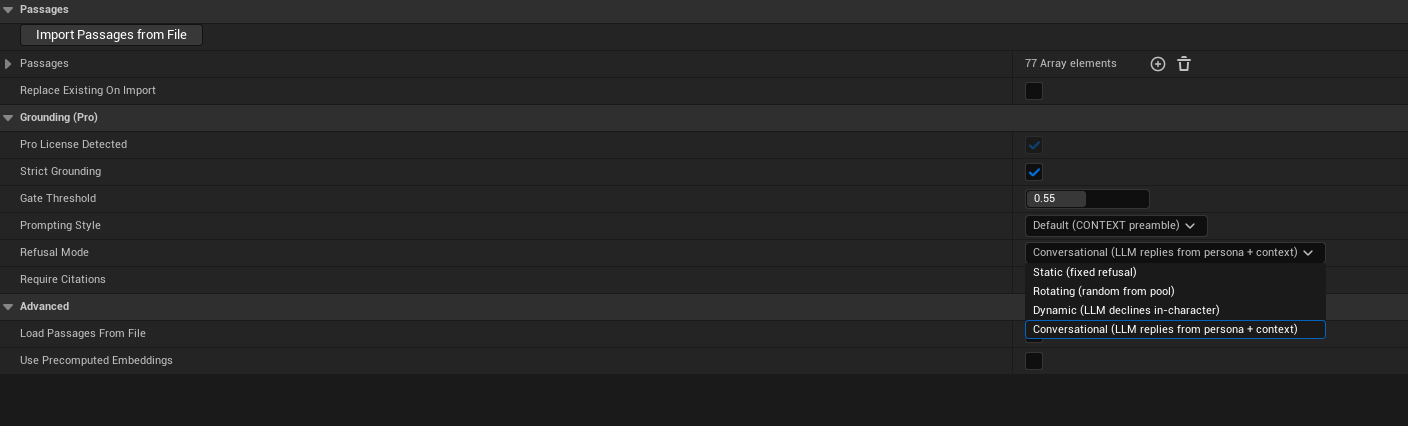 * **Strict Grounding**\
Blocks queries outside the corpus
* **Gate Threshold** *(default: 0.55)*\
Minimum cosine similarity to pass\
Tip: Bind `OnGroundingGateRejected` on `ULLMComponent`\
to view real-time scores while tuning
* **Prompting Style**
* **Extraction** *(default, recommended for small models)*
* **Default (CONTEXT preamble)**
* **Refusal Mode**
* **Static** - Uses Refusals\[0]
* **Rotating** - Random entry from Refusals
* **Dynamic** - LLM declines in character
* **Conversational (default)** - Natural persona-based reply
* **Refusals**\
Used by Static / Rotating / Dynamic modes
**Require Citations**\
Forces \[n] citations in grounded responses
* **Strict Grounding**\
Blocks queries outside the corpus
* **Gate Threshold** *(default: 0.55)*\
Minimum cosine similarity to pass\
Tip: Bind `OnGroundingGateRejected` on `ULLMComponent`\
to view real-time scores while tuning
* **Prompting Style**
* **Extraction** *(default, recommended for small models)*
* **Default (CONTEXT preamble)**
* **Refusal Mode**
* **Static** - Uses Refusals\[0]
* **Rotating** - Random entry from Refusals
* **Dynamic** - LLM declines in character
* **Conversational (default)** - Natural persona-based reply
* **Refusals**\
Used by Static / Rotating / Dynamic modes
**Require Citations**\
Forces \[n] citations in grounded responses
 ## Step 3: Link to NPC and Enable RAG
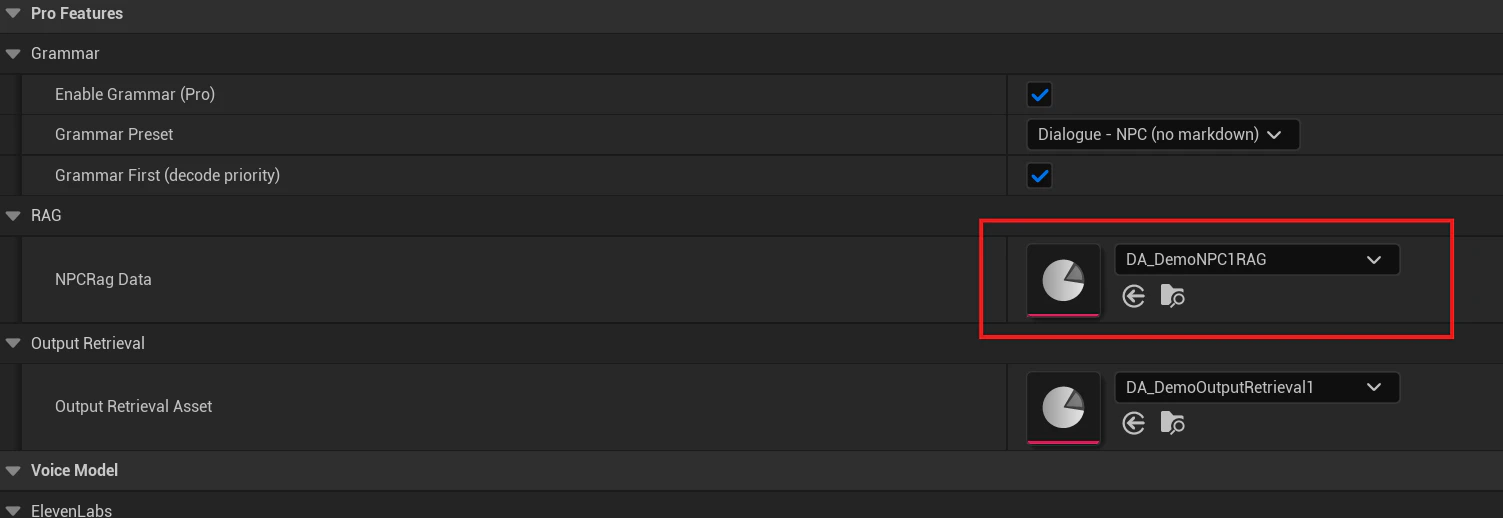
To link the RAG asset to a specific NPC, go to `UNPCPersonalityData → Pro Features | RAG → NPC Rag Data`. Assign your RAG asset.
## Step 3: Link to NPC and Enable RAG
To link the RAG asset to a specific NPC, go to `UNPCPersonalityData → Pro Features | RAG → NPC Rag Data`. Assign your RAG asset.
 To enable RAG, navigate to `ULLMServiceManager → Pro Features | RAG` and:
* **Enable RAG (Pro)** - Master toggle
* **RAG Top K** *(default: 3)* - Number of passages per query
* **Gate Threshold / RAG Min Cosine** - Tune based on gameplay
To enable RAG, navigate to `ULLMServiceManager → Pro Features | RAG` and:
* **Enable RAG (Pro)** - Master toggle
* **RAG Top K** *(default: 3)* - Number of passages per query
* **Gate Threshold / RAG Min Cosine** - Tune based on gameplay
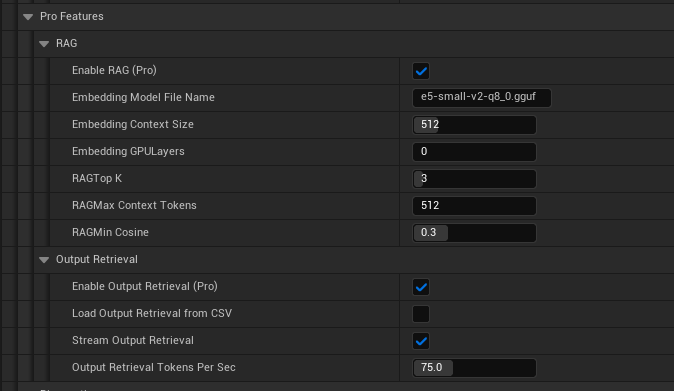 **Advanced RAG Options (Optional)**
These usually don’t need changes:
* Embedding Model File Name
* Embedding Context Size
* Embedding GPU Layers
* RAG Max Context Tokens
**Advanced RAG Options (Optional)**
These usually don’t need changes:
* Embedding Model File Name
* Embedding Context Size
* Embedding GPU Layers
* RAG Max Context Tokens