> ## Documentation Index
> Fetch the complete documentation index at: https://docs.gladecore.com/llms.txt
> Use this file to discover all available pages before exploring further.
# Pro: Installing GladeCore Pro
> Below are some simple instructions to subscribe to and set up GladeCore Pro for Unreal Engine
## Step 1: Create an Account
If you don't already have an account, go to [gladecore.com](http://gladecore.com). Sign up and create an account, then create an organization within your account. Sign Up button is at the top right of the landing page, and once you sign up and are signed in, the button to go to your Dashboard will be in the top right.
 ## Step 2: Subscribe and Download GladeCore Pro
Next, visit [gladecore.com/pricing](https://www.gladecore.com/pricing), and you will see an option to upgrade to the Pro plan. Here, you can select to pay monthly or pay annually for a discount.
If you have already purchased our plugin on FAB / Epic Games Marketplace, place your order ID in to the Promo Code field before pressing the Upgrade Plan button to get a one month free discount! You can find your order ID in the email receipt you received when purchasing the plugin.
## Step 2: Subscribe and Download GladeCore Pro
Next, visit [gladecore.com/pricing](https://www.gladecore.com/pricing), and you will see an option to upgrade to the Pro plan. Here, you can select to pay monthly or pay annually for a discount.
If you have already purchased our plugin on FAB / Epic Games Marketplace, place your order ID in to the Promo Code field before pressing the Upgrade Plan button to get a one month free discount! You can find your order ID in the email receipt you received when purchasing the plugin.
 ## Step 3: Copy your API Key into the Plugin
Afterwards, go to your [Organization Dashboard](https://www.gladecore.com/dashboard/organizations) and you will see that there is a tab you can click to go to Organization Settings. There, you can click the **Reveal** button on the right of your API key to see your API key and copy it.
## Step 3: Copy your API Key into the Plugin
Afterwards, go to your [Organization Dashboard](https://www.gladecore.com/dashboard/organizations) and you will see that there is a tab you can click to go to Organization Settings. There, you can click the **Reveal** button on the right of your API key to see your API key and copy it.
 Open your project with your new GladeCore plugin, then enter your API key at: `Project Settings → Plugins → Glade Core Settings → API Key`. Copy your API key and input it into the `APIKey` field shown below.
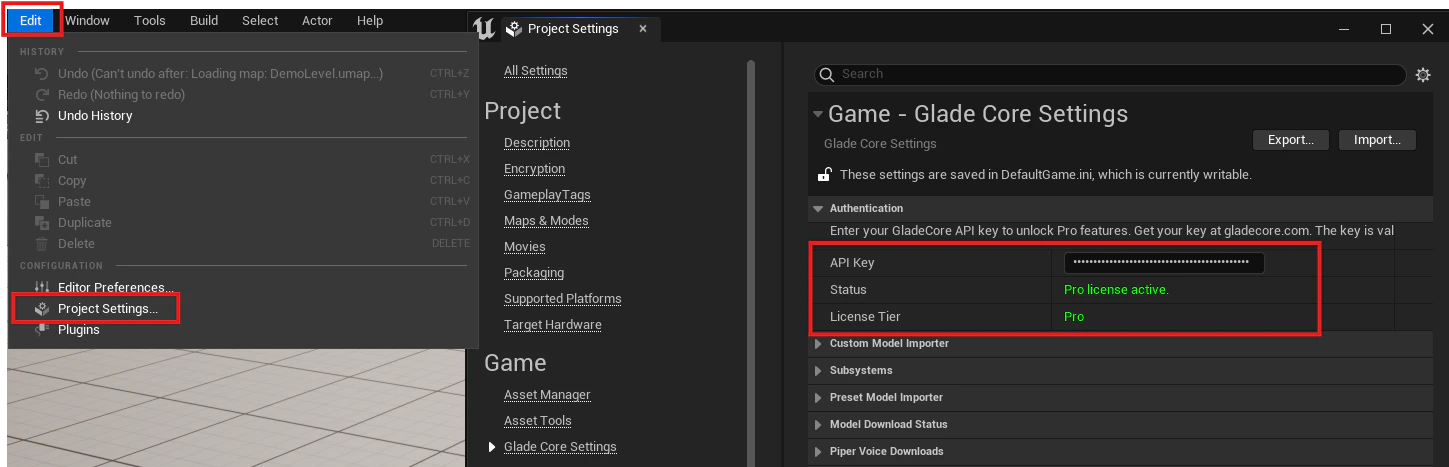 Once the API key is verified, your GladeCore Pro plugin is ready to go! The Pro version of the plugin comes with all the Basic version features, but also:
* [Retrieval Augmented Generation (RAG)](/unreal/pro-rag)
* [Grammar Presets](/unreal/pro-grammar-presets)
* [Output Retrieval](/unreal/pro-output-retrieval)
* [Custom Model Training through the Web Platform](/web-platform/model-finetuning), with preset Archetypes for common NPCs and Companions
Move on to the [next section](/unreal/pro-rag) if you would like to see how RAG works in the Pro plugin.
Once the API key is verified, your GladeCore Pro plugin is ready to go! The Pro version of the plugin comes with all the Basic version features, but also:
* [Retrieval Augmented Generation (RAG)](/unreal/pro-rag)
* [Grammar Presets](/unreal/pro-grammar-presets)
* [Output Retrieval](/unreal/pro-output-retrieval)
* [Custom Model Training through the Web Platform](/web-platform/model-finetuning), with preset Archetypes for common NPCs and Companions
Move on to the [next section](/unreal/pro-rag) if you would like to see how RAG works in the Pro plugin.