> ## Documentation Index
> Fetch the complete documentation index at: https://docs.gladecore.com/llms.txt
> Use this file to discover all available pages before exploring further.
# Step 2: Text-to-Speech
Follow the steps below to set up optional TTS for the AI.
## **Set your TTS Provider**
Set the TTS`Provider` to **Piper** (local), **Kokoro** (local) or **ElevenLabs** (cloud).
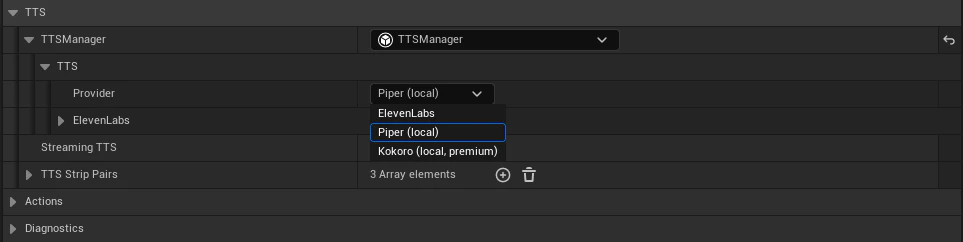 Follow the instructions below based on the TTS option you selected.
## **Setup Instructions**
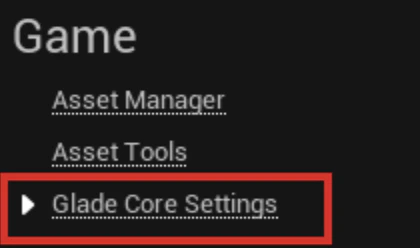
If using **Piper**, you will need to import Piper models. Navigate to `Window → Project Settings` and you will find `Glade Core Settings` under the Game tab.
Follow the instructions below based on the TTS option you selected.
## **Setup Instructions**
If using **Piper**, you will need to import Piper models. Navigate to `Window → Project Settings` and you will find `Glade Core Settings` under the Game tab.
 Under **Piper Voice Downloads** you can download preset piper models or import custom models.
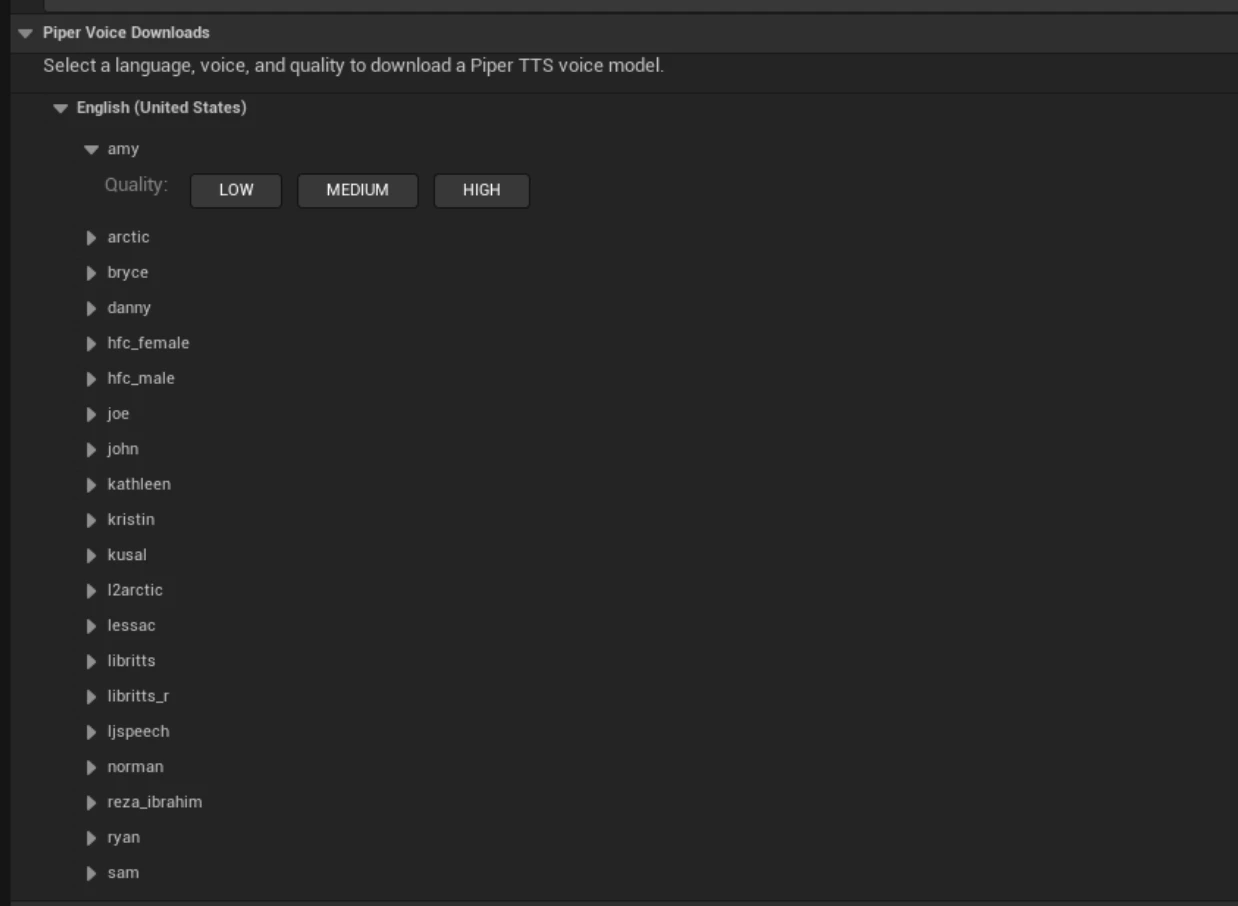 Below that there is a section to show the status of your current download in progress or idle state. Lastly, there is a custom voice importer for any other voices you may way to import online whether it be custom trained voices from yourself or other open source projects.
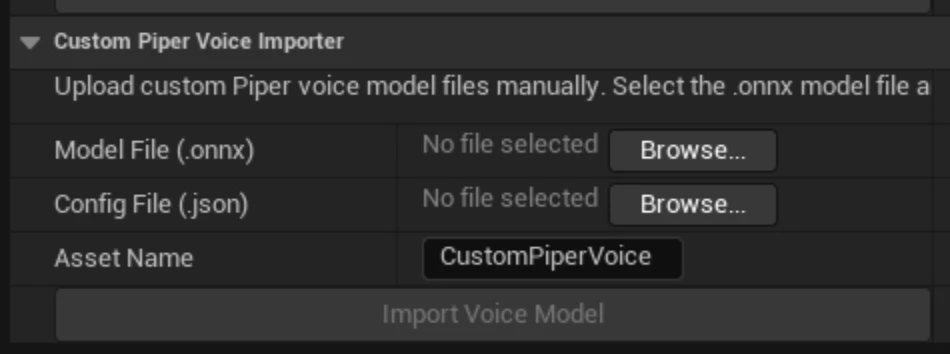 So long as you have the 2 files for the model in the format of .onnx and config.json, you can import the custom model.
The in-editor Kokoro Voice Library lists all official Kokoro v1.0 voices for english. Voices are fetched from Hugging Face on demand. Click Download to pull a single voice (\~500 KB), or Download All to grab the full set. Voices already on disk are marked On Disk. Kokoro voices are Apache-2.0 licensed.
So long as you have the 2 files for the model in the format of .onnx and config.json, you can import the custom model.
The in-editor Kokoro Voice Library lists all official Kokoro v1.0 voices for english. Voices are fetched from Hugging Face on demand. Click Download to pull a single voice (\~500 KB), or Download All to grab the full set. Voices already on disk are marked On Disk. Kokoro voices are Apache-2.0 licensed.
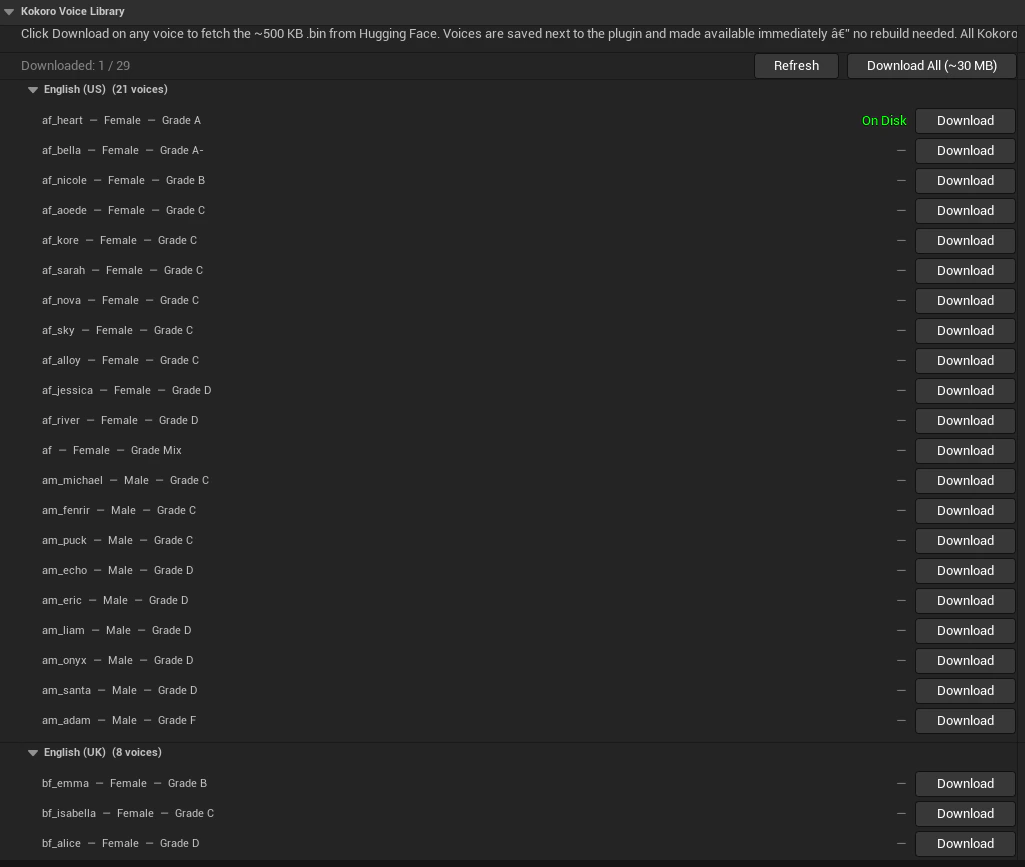 Downloaded Kokoro voices are stored as .bin files under `Plugins/GladeCore/Source/ThirdParty/Models/kokoro/voices/`. Each voice is around 500 KB and is loaded on demand by the Kokoro TTS provider.
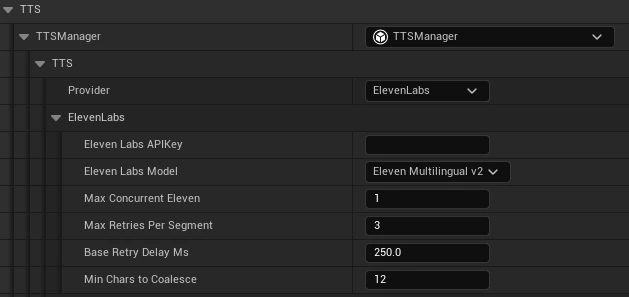
If using **ElevenLabs**, select **ElevenLabs** as the TTS `Provider` and enter the specific `Eleven Labs Voice ID` string here. Note that using this would be a cloud approach requiring an API instead of a fully local approach.
Downloaded Kokoro voices are stored as .bin files under `Plugins/GladeCore/Source/ThirdParty/Models/kokoro/voices/`. Each voice is around 500 KB and is loaded on demand by the Kokoro TTS provider.
If using **ElevenLabs**, select **ElevenLabs** as the TTS `Provider` and enter the specific `Eleven Labs Voice ID` string here. Note that using this would be a cloud approach requiring an API instead of a fully local approach.