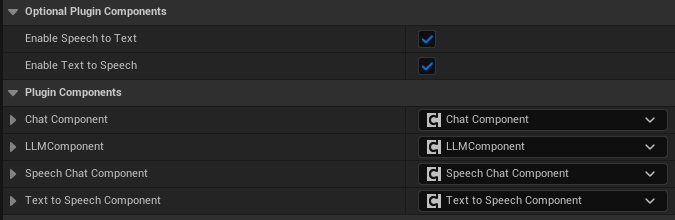
- Add the Glade Core Component:
- Open your player character Blueprint.
- Click + Add in the Components panel and search for
GladeCoreComponent. Add it to the character. This will automatically add all the necessary sub-components that are configurable within this component.
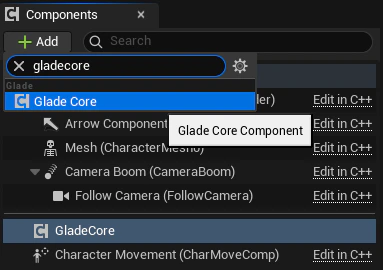
- Configure the LLM Component:
- In the Components panel, select the GladeCore
LLMComponentthat was just added.- Under the Chat category, assign your
UChatInputWidgetBlueprint to theChatInputWidgetClassproperty. - Under the LLM category, you will find the
LLMServiceManagerinstance. This is where you configure the core AI service.
- Under the Chat category, assign your
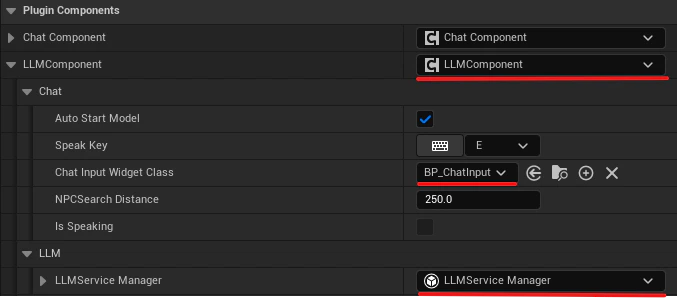
- Select the appropriate template handler based on the model you are using. By default, use
Auto Detect Template Handler, which inspects the loaded GGUF filename and automatically applies the correct chat template. See here for a list of models we support and the corresponding templates to use.
- In the Components panel, select the GladeCore
- GPU Layer Offloading
- In the
LLMServiceManager, theGPU Layersinteger controls how many model layers are offloaded to the GPU. This lets you tune VRAM usage vs. performance. - Values:
- 999 (default): All layers on GPU - maximum performance, requires enough VRAM for the full model
- 0: CPU only - no GPU used, slowest but works on any machine
- 1-N: Partial offload - first N layers on GPU, remainder on CPU (useful for limited VRAM)
- In the
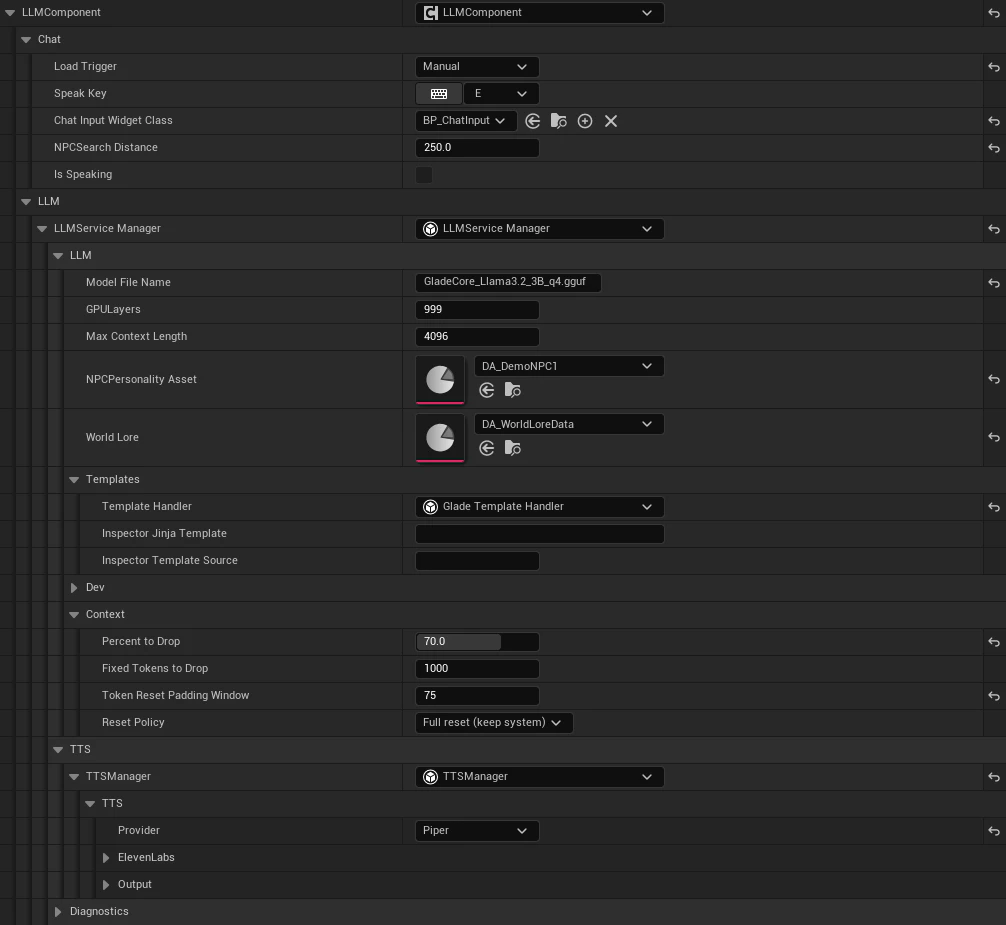
Example: LLM Component
Below is an example image of a configuredLLMComponent using Piper for TTS.
Example: Speech Chat Component
Below is an example image of a configured Speech Chat Component.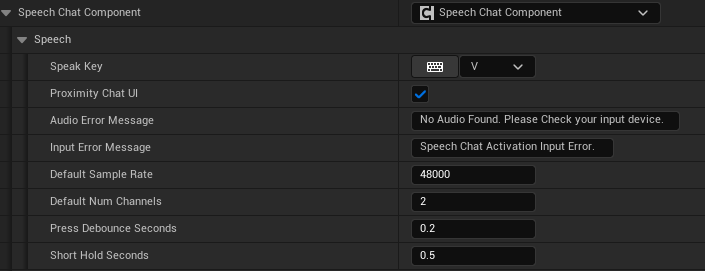
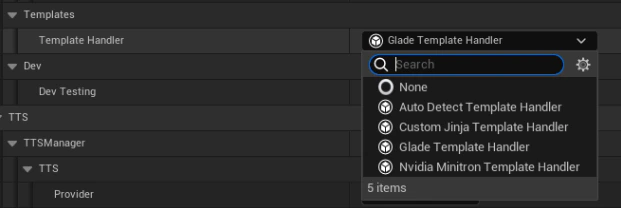
Example: Enable or Disable STT and TTS
Below is an example image of where to enable or disable Speech to Text and Text to Speech.