

Set your TTS Provider
Set the TTSProvider to Piper (local), Kokoro (local) or ElevenLabs (cloud).
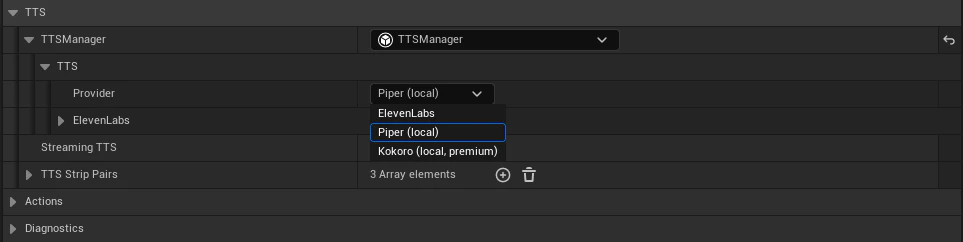
Setup Instructions
Piper (Local)
Piper (Local)
If using Piper, you will need to import Piper models. Navigate to 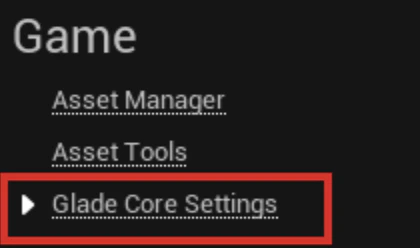
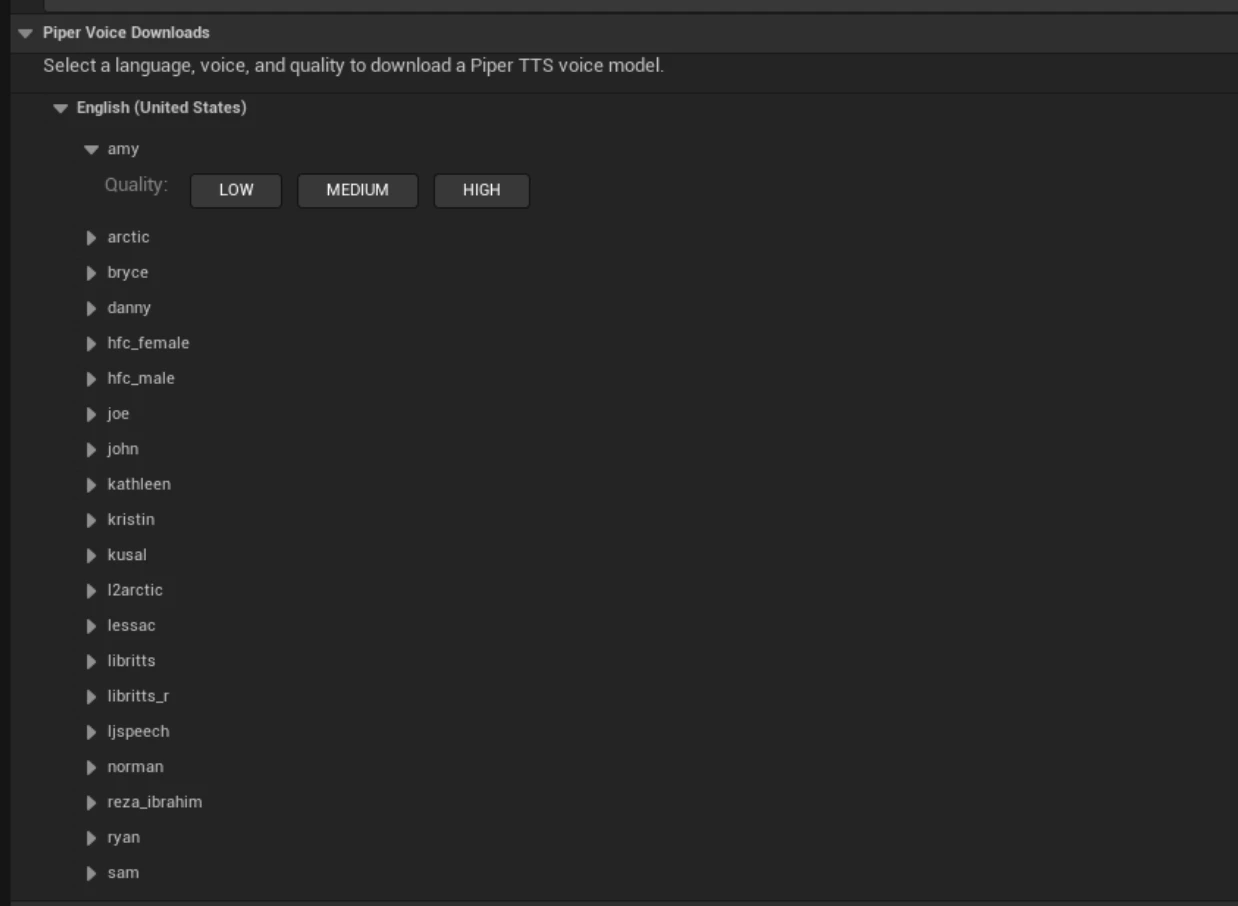
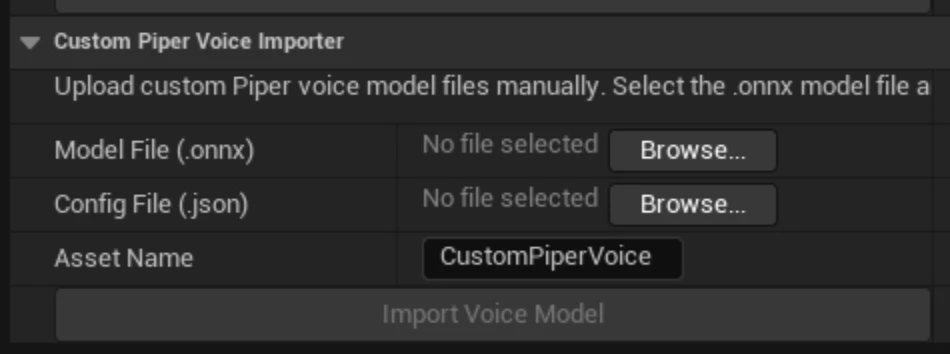
Window → Project Settings and you will find Glade Core Settings under the Game tab.The in-editor Kokoro Voice Library lists all official Kokoro v1.0 voices for english. Voices are fetched from Hugging Face on demand. Click Download to pull a single voice (~500 KB), or Download All to grab the full set. Voices already on disk are marked On Disk. Kokoro voices are Apache-2.0 licensed.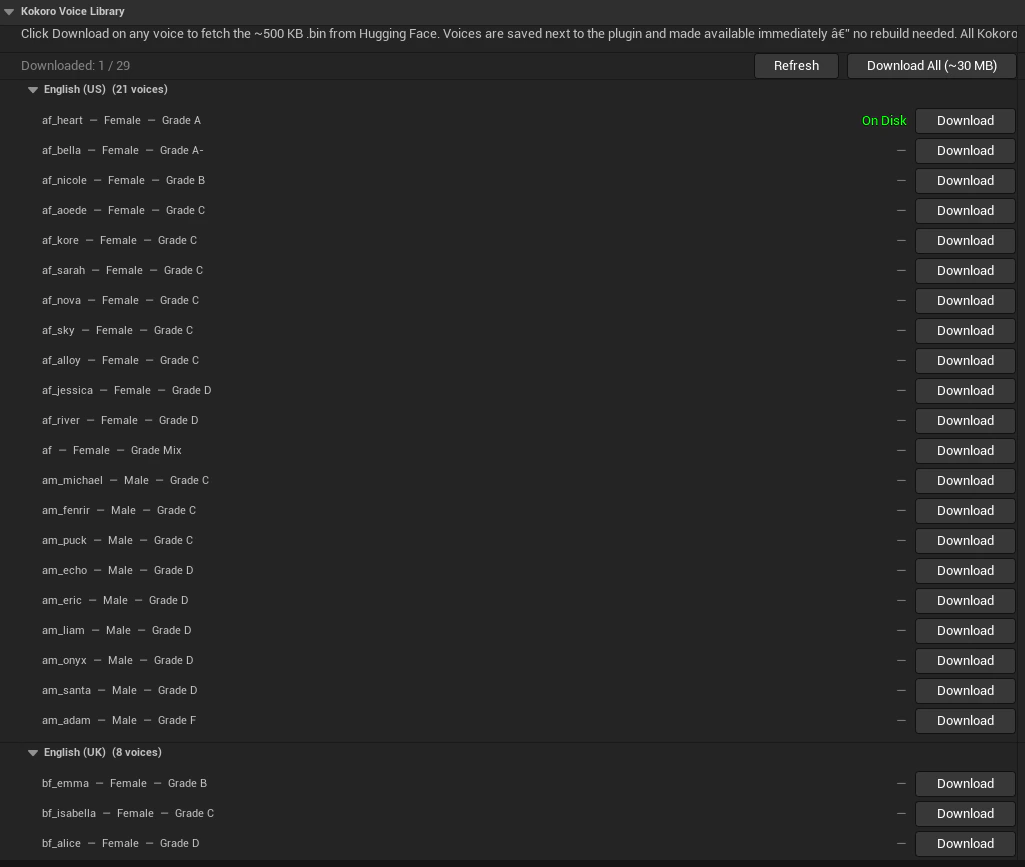
Plugins/GladeCore/Source/ThirdParty/Models/kokoro/voices/. Each voice is around 500 KB and is loaded on demand by the Kokoro TTS provider.ElevenLabs (Cloud)
ElevenLabs (Cloud)
If using ElevenLabs, select ElevenLabs as the TTS 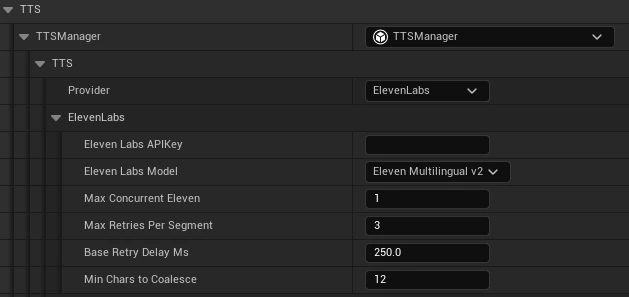
Provider and enter the specific Eleven Labs Voice ID string here. Note that using this would be a cloud approach requiring an API instead of a fully local approach.